 Oqiva
How to use Oqiva
The quick version, in a few minutes. For every detail, see the user guide. Administrators: scroll down to install it.
Your first board in seven steps
Open Oqiva and sign in
Go to your organisation’s Oqiva address (it ends in
/oqiva) and sign in as usual. The first time, a short welcome page lets you name your personal workspace. You will not see it again, on any device.Make a board
Choose New board for a blank one, or Templates for a head start. A template becomes your own copy.
Add things from the toolbar
The bar at the bottom holds the shapes, lines, text, notes, tables, icons and pictures. Pick one, then click or drag on the board. Double-click anything to type in it.
Try a mind map or a flowchart
Press M for a mind map and type your central idea, then Tab for each branch. Press Shift + F for a flowchart and Enter to add each next step.
Invite people
Choose Share at the top right. Add people by name or email as can view, can comment or can edit, or create a link.
Talk about it on the board
Press C and click a shape to leave a comment. Mention a teammate with @.
Take your work with you
Export gives you PNG, JPEG, SVG, PDF or print, or a board file. History brings back an earlier version.
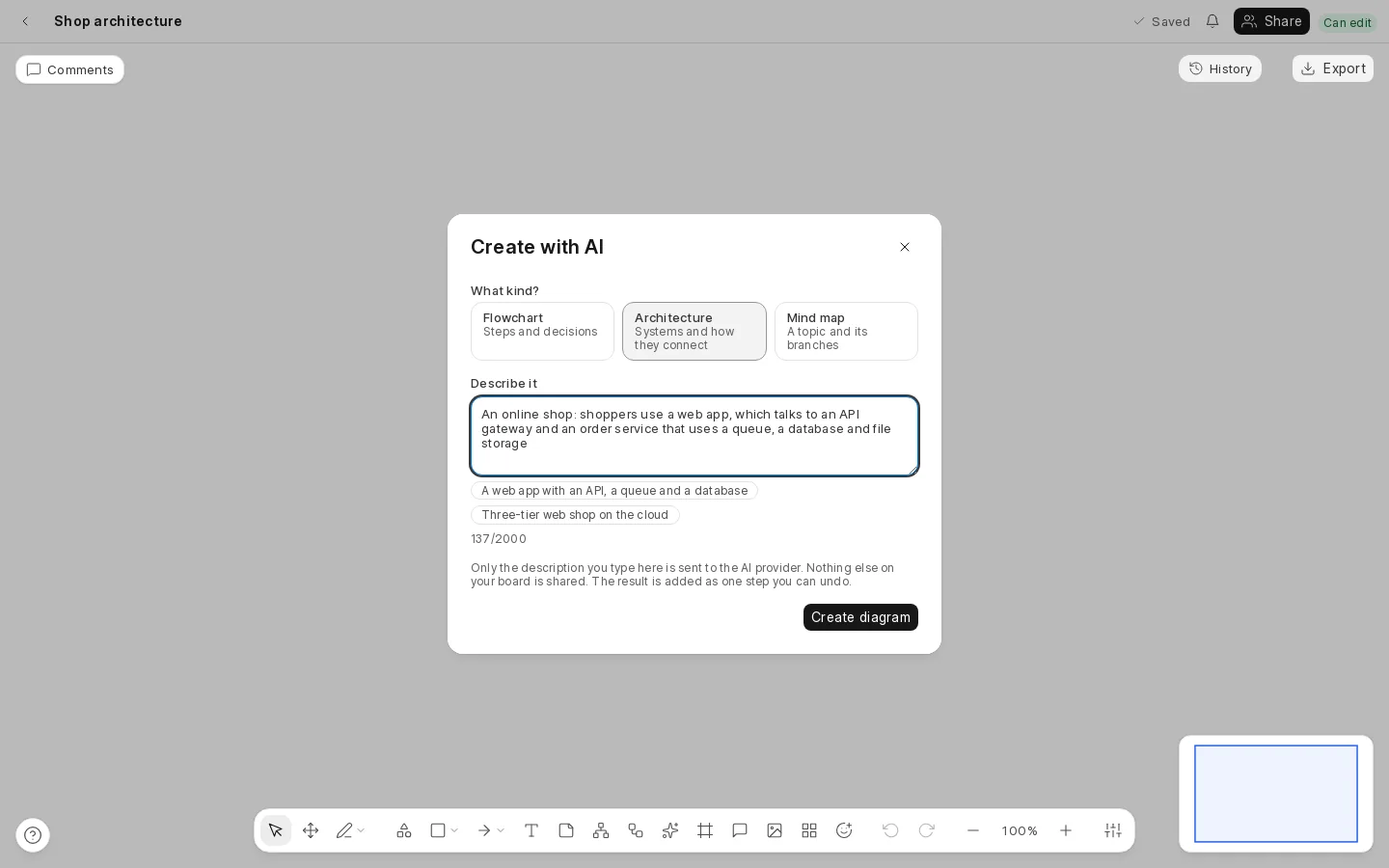
Create a diagram with AI
If your administrator has switched it on, you will see a sparkles button in the toolbar.
- Choose flowchart, architecture or mind map.
- Describe what you want, for example “how a support ticket moves from the customer to resolved”.
- Press Create diagram. It appears in free space on your board in a few seconds.
It is added as one step, so Ctrl + Z takes it away. If the button says the feature is not turned on, ask your administrator.
For administrators: installing Oqiva
Oqiva is a Frappe app. You need a Frappe 16 bench with MariaDB and Redis, the bench’s socket server (for live editing) and at least one background worker (for AI diagrams).
cd ~/frappe-bench
bench get-app oqiva <repository-address>
bench --site your-site install-app oqiva
bench build --app oqiva
bench --site your-site migrate
bench restart
Then open https://your-site/oqiva. The first visit by each person creates their personal workspace.
Settings you may want to change
Open Oqiva Settings in Desk to set the fair-use limits (objects per board, board size, boards per workspace, picture storage), how long the Trash and automatic versions are kept, and whether the Oqiva User role is granted on a person’s first visit.
Turning on AI diagrams
- In Oqiva Settings, choose the provider: Anthropic or Google Gemini.
- Paste the provider’s API key. It is stored encrypted and is never shown to users.
- Leave the model blank for the default, or enter one that belongs to that provider.
- Make sure a background worker is running (
bench startdoes this for development).
Keeping it healthy
Back up with files (bench backup --with-files), because pictures are stored as private files. After every upgrade run bench build --app oqiva, bench migrate, and restart everything, including the socket server.
Frequently asked questions
Do I need to install anything to use Oqiva?
No. People use Oqiva in their web browser, at the address of the site where your organisation installed it. Your administrator does the installation once.
Where are my boards stored?
In your organisation's own Frappe database, on its own server. They are not sent to the Oqiva project or to any other service.
Can several people edit the same board at once?
Yes. You see each other's pointers and changes as they happen, and edits made at the same time are merged rather than overwritten.
What if I lose my connection?
Keep working. Your changes are kept on your device and merged and saved when you are back online.
Which browsers does it support?
Oqiva is built and tested with current Chromium-based browsers such as Chrome and Edge. Firefox and Safari are expected to work but have not been tested yet, so please tell us if you find a problem.
Does the AI feature see my whole board?
No. Only the description you type in the dialog is sent to the AI provider your administrator chose. Nothing else on your board is shared, and the feature is off until an administrator turns it on.
Can I get my work out of Oqiva?
Yes. Export a board as PNG, JPEG, SVG or PDF, print it, or save it as an Oqiva board file that can be imported into any workspace.
How do I get Oqiva for my organisation?
Write to support@oqiva.in and tell us about your setup. If you already run Frappe, installing Oqiva takes a few commands, shown on this page.
Stuck, or want a hand getting started?
Write to support@oqiva.in. Tell us what you are trying to do and what you see.